

Most SQL Server installations have a formatting problem.
The servers run, databases function, queries execute. Everything works. But performance bleeds slowly from bad disk formatting that nobody checks.
Windows defaults to 4KB allocation units, but SQL Server workloads are optimized for 64KB - particularly for OLTP and high-I/O environments.
This gap creates I/O bottlenecks that degrade performance across your entire database environment.
The problem? This setting gets locked in during installation. Fixing it later means downtime, data migration, and production risk.
What Are Allocation Unit Sizes and Why Do They Matter?
Allocation units define how Windows writes data to disk. Think of them as the chunk size for storing information.
Windows defaults to 4KB allocation units because that works for general computing. Office files, images, system files all perform fine with 4KB chunks.
SQL Server reads and writes data differently. Database pages are 8KB. Transaction logs write in larger blocks. When your storage uses 4KB allocation units. SQL Server always reads/writes 8KB pages. NTFS handles this regardless of cluster size. Smaller allocation units only add NTFS overhead and fragmentation risk.
This increases fragmentation and reduces throughput.
The performance impact compounds across millions of database operations. Query response times slow down. Transaction throughput decreases. Disk activity increases.
64KB reduces NTFS overhead and fragmentation, but SQL Server’s I/O behavior stays the same. I/O efficiency improves.
Performance gains show up in faster query execution and reduced disk contention.
The Next, Next, Next Installation Problem
Here's how bad formatting happens.
Someone installs Windows Server. The installer prompts for disk formatting. Default settings appear. They click next, next, next. Windows formats drives with 4KB allocation units.
Then SQL Server gets installed. The database files get created on those badly formatted drives. The server goes into production.
Nobody checks the allocation unit size. Nobody realizes the formatting is wrong. The performance impact is subtle enough that it doesn't trigger immediate alerts.
Months pass. The database grows. Performance degrades slowly. Teams troubleshoot query performance, add indexes, tune configuration settings. But the underlying I/O problem remains because the storage formatting is wrong.
This happens on servers across production environments. The default Windows formatting creates performance bottlenecks that most DBAs never discover.
How to Check Your SQL Server Disk Formatting
You need diskpart to check allocation unit sizes. This is a Windows command-line tool that manages disk partitions and volumes.
Warning: diskpart can damage your drives if you execute the wrong commands. Run this on test servers first if you're unfamiliar with the tool. Be careful. You can lose data if you run partition modification commands.
Here's the process:
Step 1: Open Command Prompt as Administrator You need elevated privileges to run diskpart. Right-click Command Prompt and select "Run as administrator."
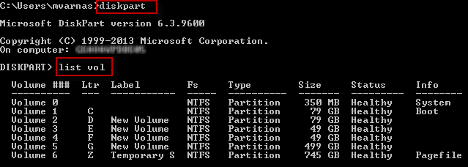
Step 2: Launch diskpart
Type diskpart and press Enter. This opens the diskpart program. Your command prompt changes to show DISKPART>.
Step 3: List Your Volumes
Type list volume and press Enter. This displays all drives on your server with their drive letters, labels, and sizes.
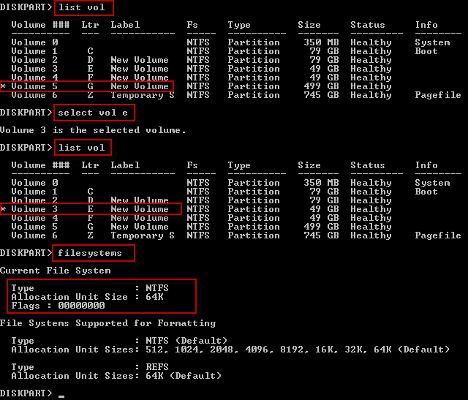
Step 4: Select Your SQL Server Volume
Type select Volume X where X is the letter of your SQL Server data drive.
For example: select Volume E
The selected volume needs to be the one hosting your SQL Server database files. If you have data files on multiple drives, you'll need to check each one.
Step 5: Check the File System
Type filesystems and press Enter. This displays information about the selected volume, including the allocation unit size.
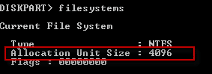
Look for the line that says "Allocation Unit Size."
If you see 4KB or 4096 bytes, you have the Windows default. Your SQL Server isn’t running in the most ideal setup.
If you see 64KB or 65536 bytes, someone configured the storage properly for SQL Server.
Some newer Windows versions support allocation units larger than 64KB. The transcript mentions seeing chunk sizes "way above 64" on test systems that ran even faster. But production environments should stick with 64KB. Going higher can hit unexpected limitations or compatibility problems.
Why This Is Hard to Fix After Deployment
Bad formatting becomes a foundation problem.
Your SQL Server databases are already running on the badly formatted storage. You can't change allocation unit size on a volume with data. You need to:
- Migrate all databases off the volume
- Reformat the volume with 64KB allocation units
- Migrate databases back to the reformatted storage
This means production downtime. Coordinating with application teams. Testing the migration process. Managing the risk of data movement.
The technical work is straightforward. The operational complexity is what makes this difficult. Getting approval for production downtime to fix a formatting issue that isn't causing immediate failures requires explaining the performance impact to non-technical stakeholders.
Most teams defer the fix. They accept the performance degradation rather than take the downtime risk.
The bad formatting stays in place for years.
When to Check Your SQL Server Storage Formatting
Check allocation unit sizes during these scenarios:
New SQL Server installations: Verify formatting before deploying databases to production. Fix formatting issues while the server is still empty.
Performance troubleshooting: When investigating unexplained I/O bottlenecks or slow query performance, check disk formatting. Bad allocation units might be the root cause.
Server migrations: Moving to new hardware or cloud infrastructure provides an opportunity to correct formatting without additional downtime.
Capacity expansion: Adding new storage volumes for database growth means formatting new drives. Configure them properly from the start.
Post-audit reviews: After someone discovers bad formatting on one server, check your entire environment. If one server has the problem, others likely do too.
The PowerShell and Third-Party Tool Question
PowerShell scripts and community tools can check allocation unit sizes faster than diskpart.
They can scan multiple servers, generate reports, and automate the verification process.
So why use diskpart?
Emergency assessments. When you're working with a new client or temporary engagement where you can't install third-party tools or custom PowerShell modules, diskpart works everywhere. No dependencies. No approval process for tool installation. Every Windows Server has diskpart available.
For ongoing monitoring across your environment, automated tools make more sense. But diskpart provides a reliable fallback when you need immediate answers without tool installations.
What About Cloud and Azure SQL?
Azure SQL Database and Azure SQL Managed Instance handle storage formatting automatically. Microsoft manages the underlying storage configuration.
Allocation unit sizes are optimized for SQL Server workloads without manual intervention.
This applies to platform-as-a-service offerings. If you're running SQL Server on Azure VMs, you're still responsible for storage formatting. The same disk formatting issues apply to virtual machines as to physical servers.
Cloud infrastructure provides opportunities to fix formatting problems during migration. When moving from on-premises to Azure VMs, configure the new storage with proper allocation units before deploying databases.
Use the migration as a chance to correct formatting that would require downtime to fix in existing environments.
Test Before You Change Production
Don't reformat production storage without testing the process first.
Build a test environment that mirrors your production configuration. Practice the migration workflow. Document each step. Measure the time required. Identify potential failure points.
Test your backup and restore procedures. Verify database integrity after migration. Confirm application connectivity and performance after moving databases back to reformatted storage.
The technical process is straightforward, but execution risk is high. Production data migration carries inherent risk. Testing reduces that risk and builds confidence in your procedure.
What to Do If You Find Bad Formatting
Finding 4KB allocation units on your SQL Server storage means planning a fix.
- First, assess the scope. Check all volumes hosting SQL Server files. Data drives, log drives, tempdb storage all need proper formatting. Document which volumes need correction.
- Second, prioritize based on impact. High-transaction databases see more performance benefit from correct formatting than lightly-used systems. Focus remediation efforts where they'll deliver the most value.
- Third, plan the migration. Schedule downtime. Coordinate with application teams. Prepare your backup and restore procedures. Test the process on non-production systems first.
- Fourth, execute carefully. Follow your tested procedure. Verify formatting after each volume. Confirm database integrity after migration. Monitor performance to validate the expected improvements.
Takeaways
SQL Server storage formatting matters for I/O performance.
Windows typically formats volumes with 4KB allocation units. SQL Server doesn’t require 64KB, but NTFS is more efficient with 64KB clusters for database workloads.
This mismatch creates performance bottlenecks that degrade database operations.
Check your formatting with
diskpartduring installations, migrations, and performance investigations.
The commands are straightforward but require administrator access and careful execution.
Fixing bad formatting after deployment requires downtime and data migration. Plan carefully. Test thoroughly. Execute during scheduled maintenance windows. The performance gains from proper formatting are real but often overlooked.
This is one of those configuration settings where doing it right during initial installation saves significant remediation effort later.

