

High CPU usage on your SQL Server?
Before you start pricing out hardware upgrades, check your column data types.
We recently worked with a national flower distributor facing persistent CPU spikes. Their vendor support recommended more hardware.
We found something different.
A single column design mistake was eating 15-20% of their server's CPU capacity.
The Problem: Hidden in Plain Sight
The client's development team had initially contacted us about high CPU consumption across their SQL Server environment. Performance had degraded noticeably over several months, and routine operations were taking longer than expected.
Our monitoring system immediately flagged the issue in Query Store's top CPU consumers report. One specific query was executing hundreds of thousands of times per day, consuming excessive CPU resources with each execution.
The query performed a simple equality check on a text column. Nothing complex. But that column was defined as NVARCHAR(max).
Why NVARCHAR(max) Creates Performance Problems
When you define a column as NVARCHAR(max), SQL Server allocates space for up to 2GB of data per field. This creates two immediate problems:
First, you severely limit indexing capability. SQL Server does not allow NVARCHAR(max) columns as index key columns, though they can be used as included columns or via computed columns.
(If you want a practical framework for choosing the right indexes (and avoiding expensive dead-end ones), read our index tuning guide.)
Second, you waste memory resources. Even when your actual data averages under 100 characters, SQL Server treats NVARCHAR(max) as a large object (LOB), which affects cardinality estimation, row storage, and plan choices, often leading to less efficient execution strategies and higher CPU usage.
We validated the actual data in this column. Maximum length? Less than 100 characters. The NVARCHAR(max) designation was pure overhead with zero benefit.
The Solution: Right-Size Your Data Types
The fix involved two steps:
Step 1: Data Type Change We changed the column from NVARCHAR(max) to NVARCHAR(4000), which fits within SQL Server’s 900-byte index key limit for Unicode data when used appropriately, allowing the column to be indexed.
Before making the change, we verified safety by scanning existing values. With a maximum observed length under 100 characters, NVARCHAR(4000) provided a 40x buffer.
Step 2: Index Creation Once the column was properly sized, we created a non-clustered index using the string column as the key. We added included columns to cover the query's needs and eliminate key lookups.
This is standard database optimization. But it was impossible before the data type change.
The Results: Immediate Impact
The performance improvement happened the moment we deployed the index.
Before the change:
- CPU consumption: Baseline high
- Application response times: Degraded
- Server utilization: Near capacity
After the change:
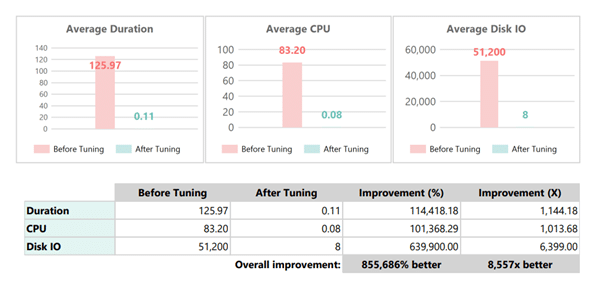
- Average duration: from 125.97 to 0.11 (per execution)
- Average CPU per execution: from 83.20 to 0.08
- Average disk I/O: from 51,200 to 8
The query that was previously scanning the table now uses index seeks. What used to consume hundreds of thousands of CPU cycles per day now completes in milliseconds.
Query Store before/after metrics confirmed the improvement across every execution. The performance charts showed an immediate drop in CPU score, reads score, and duration score.
The Hidden Cost: Communication Delays
Here's what made this case frustrating: The technical changes themselves were straightforward, but execution time depends heavily on table size, locking strategy, and deployment window. The project timeline? Three months.
The delays had nothing to do with technical complexity. The client's development team was overwhelmed with other priorities. Our repeated recommendations sat in their backlog while their SQL Server continued burning excessive CPU.
This pattern is common. IT teams running lean operations struggle to prioritize database maintenance over feature development. Meanwhile, their infrastructure costs climb and performance degrades.
The data type change itself was straightforward and low-risk. We had validated safety, tested on dev, and prepared rollback procedures. But getting approval and implementation time required constant follow-up.
Why This Happens: Common Data Type Mistakes
Development teams make oversized column choices for understandable reasons:
"Better safe than sorry" design. When you're uncertain about maximum field lengths, NVARCHAR(max) seems like the safe choice. It handles any possible input.
Copy-paste development. One developer uses NVARCHAR(max) somewhere, others copy the pattern without questioning whether it's appropriate.
Lack of database expertise. Application developers often don't understand the performance implications of data type choices. The code works either way, so why would it matter?
No review process. Schema changes go straight to production without DBA review. Nobody catches the oversized types until performance problems emerge.
The result? Tables fill up with VARCHAR(max), NVARCHAR(max), and INT fields storing values that never exceed 10. Each one creates unnecessary overhead.
How to Identify Data Type Problems in Your Environment
You don't need expensive tools to find these issues. Here's how to check your own SQL Server:
Use Query Store to find CPU consumers. Navigate to Query Store > Top Resource Consuming Queries and sort by CPU. Look for queries executing frequently against large tables.
Check for missing indexes. SQL Server's built-in DMVs will show you where indexes could help. But first, verify your column types allow indexing.
Audit your schema for oversized types. Run a query against sys.columns to find NVARCHAR(max), VARCHAR(max), and other oversized definitions. Then check DATALENGTH() on actual data to see if the size is justified.
Monitor after changes. Query Store provides automatic before/after metrics when you make changes. You don't need to manually capture baselines.
Best Practice: Choose the Minimum Viable Size
When designing columns, pick the smallest type that handles your realistic maximum values with reasonable headroom.
For string data:
- Analyze your actual content length
- Add a reasonable buffer (2-4x typical usage)
- Use fixed-size types (
VARCHAR(n),NVARCHAR(n)) instead of max types - Reserve max types for truly variable-length content like document storage
For numeric data:
- Use
TINYINT(0-255) for small counts - Use
SMALLINTfor values under 32,767 - Use
INTfor most identifiers and reserveBIGINTonly when values can exceedINT’s range. - Avoid
BIGINTunless you're actually storing trillions
Every byte you save multiplies across millions of rows and thousands of executions.
(Want to see how bad data types quietly bloat clustered indexes and drive up CPU, IO, and storage? Read this breakdown.)
The Business Impact Beyond Performance
This optimization created opportunities beyond faster queries:
Cost reduction potential. With 15-20% CPU freed up, the client gained headroom to delay or downgrade their next server upgrade.
Improved application experience. Users reported faster response times across the system. The change removed a performance bottleneck affecting multiple workflows.
Scalability headroom. The freed resources allow business growth without infrastructure expansion.
Reduced support burden. Performance complaints from staff and customers dropped significantly.
For a mid-size business, this translates to thousands in avoided hardware costs and eliminated productivity losses.
When to Review Your Column Definitions
You should audit data types when:
- You're experiencing unexplained CPU consumption. Before adding hardware, verify your schema isn't creating unnecessary work.
- Tables grow beyond 10 million rows. Small inefficiencies multiply into major problems at scale.
- Query Store shows frequently-executed scans. Missing indexes often point back to unindexable column types.
- You're planning a server upgrade. Optimization might eliminate the need entirely.
- You're migrating to cloud infrastructure. Azure SQL costs correlate directly to resource consumption. Inefficient schemas inflate your monthly bill.
Frequently Asked Questions
How do I know if my data types are too large?
NVARCHAR(max), VARCHAR(max), or oversized fixed-length types. Then check actual data using DATALENGTH() or MAX(LEN(column_name)). If your maximum observed length is consistently far below the defined capacity, it may indicate an oversized column, depending on growth expectations and data variability. Will changing column types break my application?
NVARCHAR(max) to NVARCHAR(4000) is safe if your data validates under 4000 characters. Test on a development copy first and verify no application code depends on the max designation.How long does a data type change take?
Can I create indexes on NVARCHAR(max) columns?
NVARCHAR data, this typically means a practical limit of 450 characters. You must change to a fixed-size type first. Computed columns with CAST() can work around this but add complexity. 
